
FTSLED / Blog
Cerise CRMX spectrum analyzer: see and block 2.4 GHz channels
Since firmware 1.8.5, Cerise has a fully redesigned spectrum analyzer on every model, the 1U USB included. If your Cerise runs older firmware, update it first. Here's what the analyzer is for on a set, and how to use it.
Why use a spectrum analyzer on set?
CRMX works in the 2.4 GHz band, between 2402 and 2480 MHz. On a set it shares that band with a lot of other gear: Wi-Fi networks and phones, wireless follow focus and lens control (ARRI LCS, Preston), some wireless video links, 2.4 GHz intercoms and wireless mics, ZigBee devices…
CRMX uses adaptive frequency hopping (AFH): it spots busy frequencies and avoids them automatically. But in a crowded RF environment, or next to sensitive equipment, it's better to decide for yourself which ranges to leave clear. Blocking the channels of a follow focus or a Wi-Fi network cuts interference both ways: your fixtures stay stable, and so does the other departments' gear.
The built-in analyzer shows you what's using the band and lets you block those frequencies, with no extra hardware. LumenRadio's Stardust has an analyzer too; Cerise adds presets for the most common film-set equipment.
Open the analyzer
- Connect to Cerise's WebUI (172.30.0.1 over USB with firmware 1.8.11).
- Open the "Spectrum" tab.
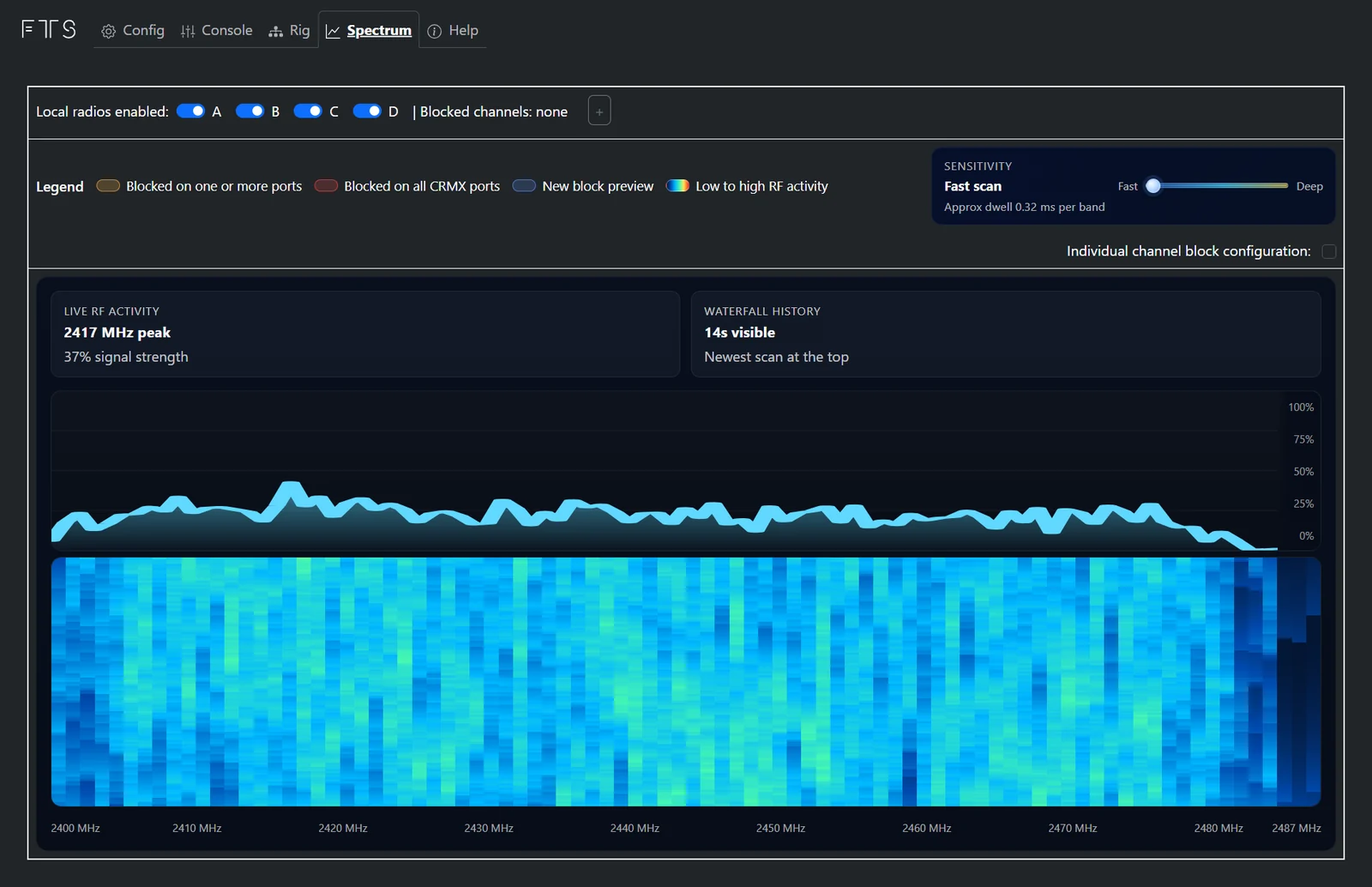
- "Live RF activity" shows activity across the whole band, from 2400 to 2487 MHz, with the busiest frequency and its signal strength.
- "Waterfall history" keeps about 14 seconds of history, newest scan at the top. Cool colours (black, blue) mean a quiet band; warm colours (green to red) mean heavy use.
- The "Sensitivity" slider, top right, sets how long Cerise listens to each band: "Fast" refreshes quickly, "Deep" listens longer to catch short bursts. For now the difference between the two is small; we're still improving this setting.
Block frequencies
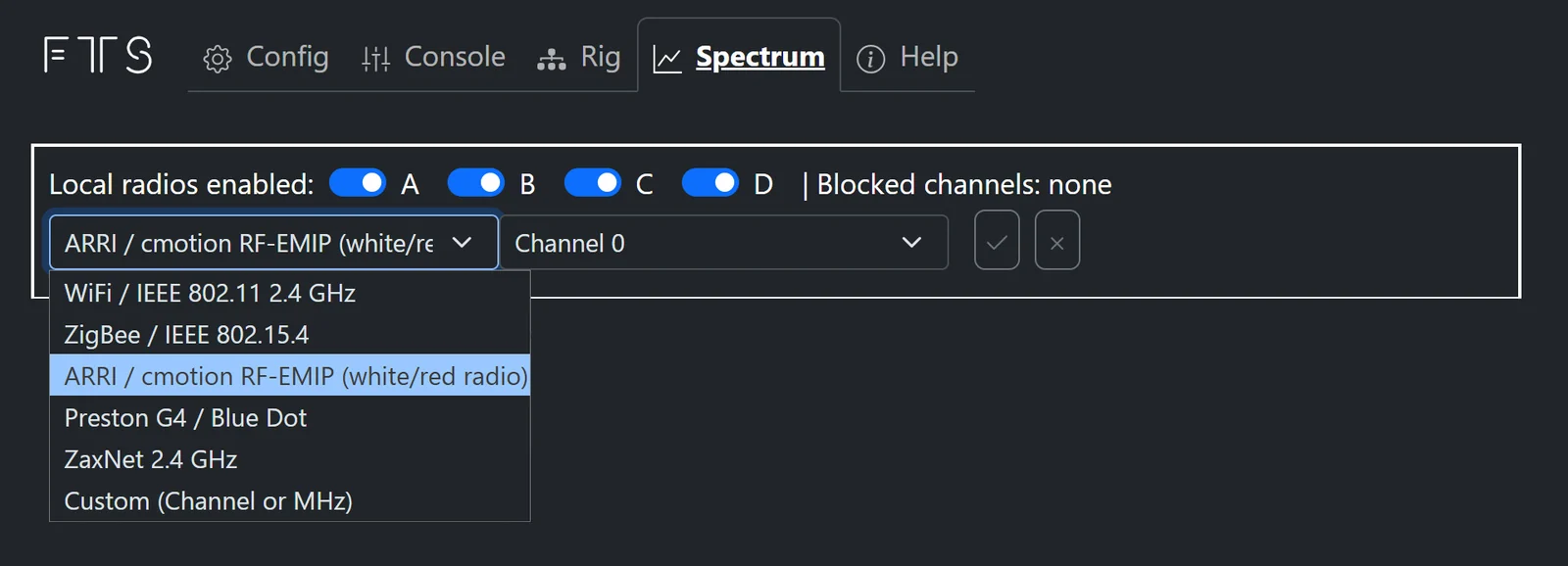
- Click the "+" button next to "Blocked channels: none".
- Pick a preset, or "Custom (Channel or MHz)" to enter a channel or a range in MHz:
- WiFi / IEEE 802.11 2.4 GHz, with the channel and width (20 MHz, for example)
- ZigBee / IEEE 802.15.4
- ARRI / cmotion RF-EMIP (white/red radio)
- Preston G4 / Blue Dot
- ZaxNet 2.4 GHz
- Select the channel the equipment uses, then confirm with ✓.
Blocked frequencies show as red bands on the spectrum, and each block appears as a tag next to "Blocked channels". You can layer several: use "+" again to block a Wi-Fi network, a follow focus and a custom range at the same time, for example. To remove a block, click its bin icon.
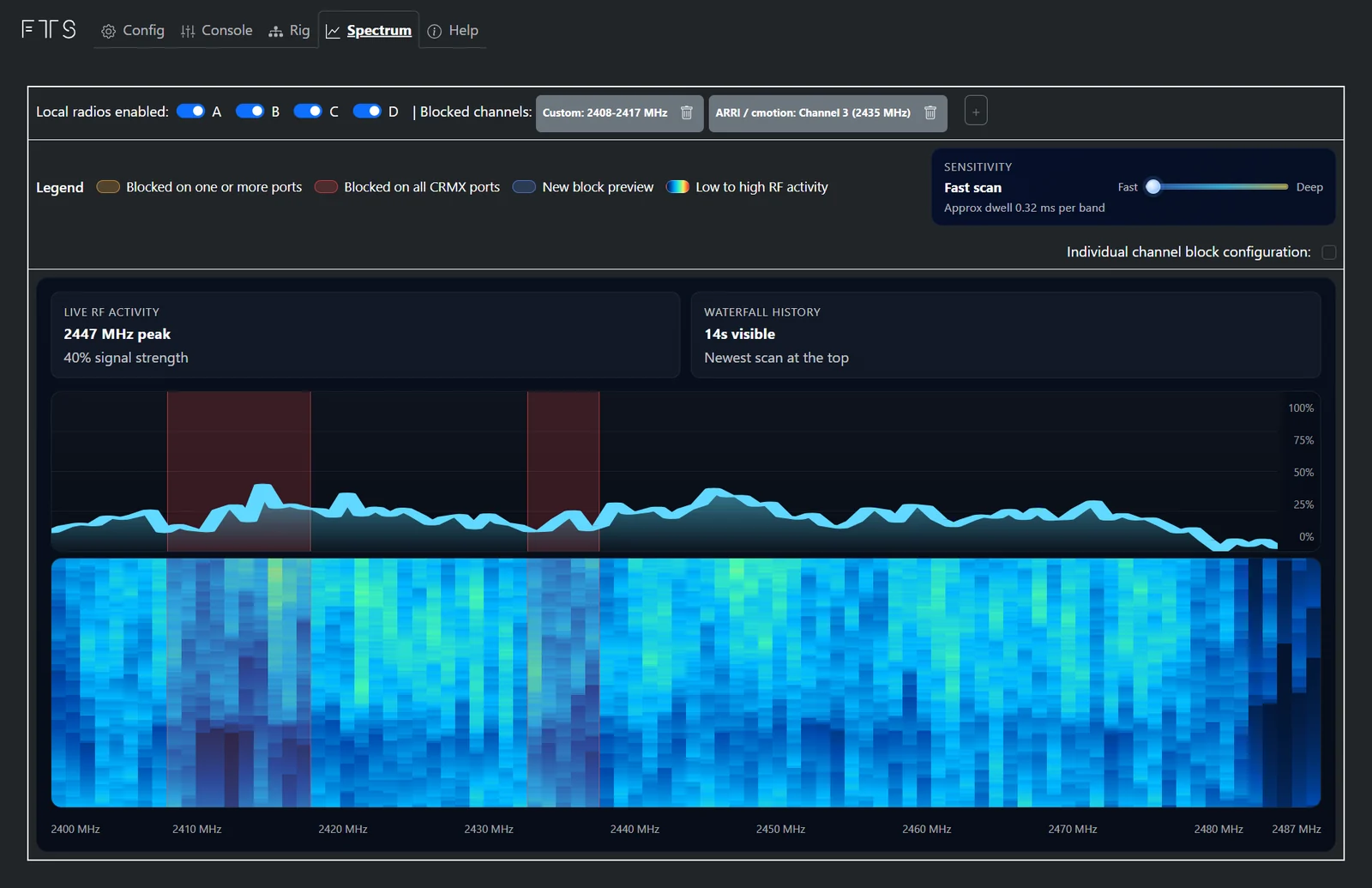
The legend shows three cases:
- "Blocked on all CRMX ports" (red): the range is blocked on every radio;
- "Blocked on one or more ports" (brown): it's blocked on some radios only;
- "New block preview" (blue): a preview of the block you're setting up.
Leave CRMX at least 16 MHz
CRMX needs at least 16 MHz of free spectrum to work. If your blocks leave it less than that, the TimoTwo radio resets and transmits across the whole band again, so your blocks stop doing anything. Only block what's actually in use on set.
Not sure which frequency to block?
If you don't know which channel a device uses, use Cerise as a detector:
- Switch off all of Cerise's radios with the "Local radios enabled" switches, so its own CRMX doesn't show on the spectrum.
- Bring Cerise close to the device you suspect. The analyzer's antenna sits under the cherry logo on top of the transmitter.
- Watch which frequencies light up in the waterfall, then block them.
- Switch Cerise's radios back on.
Set each radio separately
Tick "Individual channel block configuration" to block frequencies radio by radio (A, B, C, D) instead of on all of them at once. Ranges blocked on only some radios then show in brown.
Switch a radio off
Next to "Local radios enabled", each radio has its own switch (A to D, depending on the model). Switch off the ones you don't need on this job, so they stay off the band.
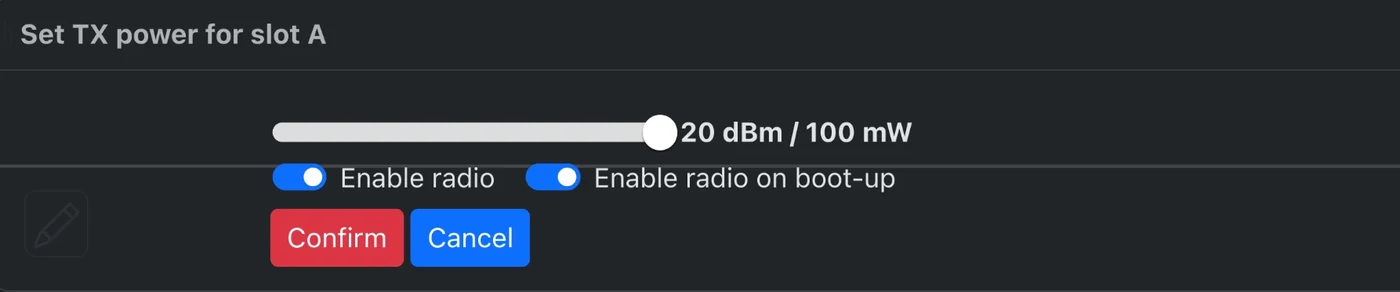
These switches are temporary: the radios come back on at the next power cycle. To keep a radio off, for example if you only use two universes of a 4U Pro Wired, open the Config tab, click the radio's "TX power" button (the megaphone icon), switch off "Enable radio on boot-up" and press "Confirm". The same window sets the radio's transmit power.

A good habit at the start of the day
When you arrive on set, check the Spectrum tab, ask the camera and sound teams which channels they use, and block them before prelight. Cerise then keeps the spectrum organised: every system keeps its space, and you avoid dropouts in the middle of a take.