
Read all on one page
Getting started
Using Cerise with an iPad
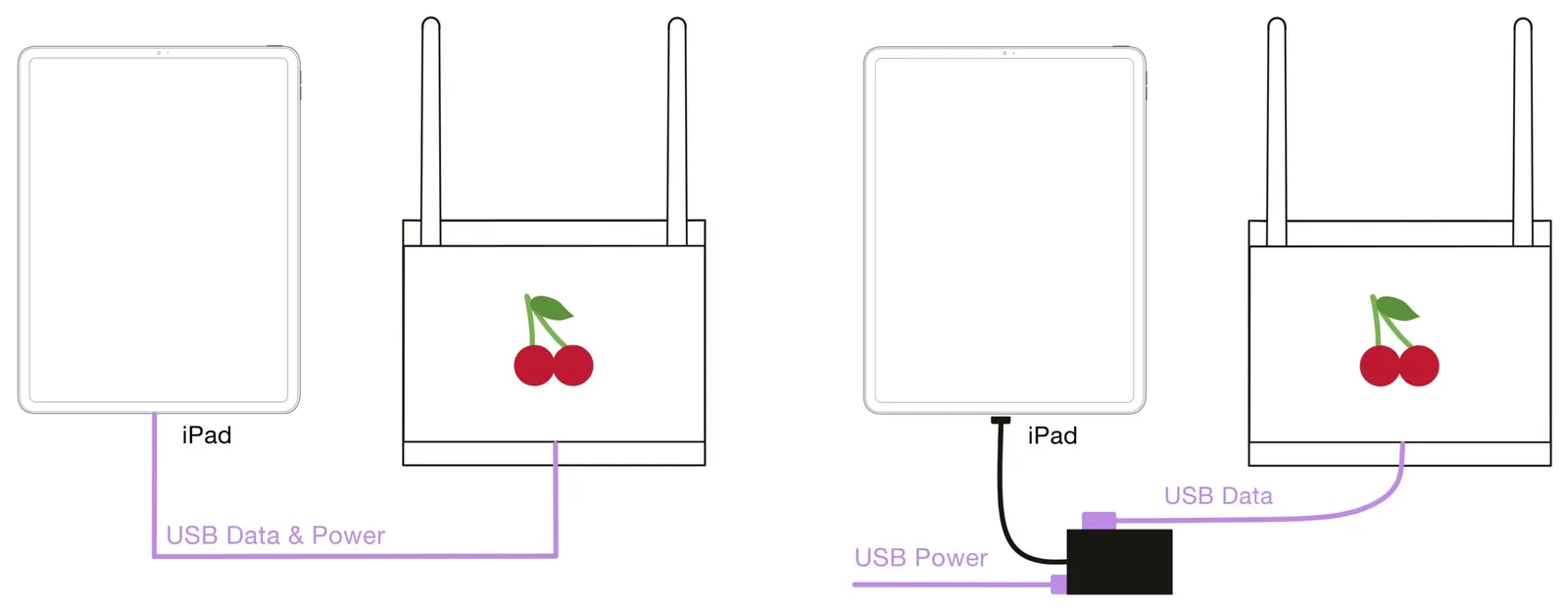
Cerise can be directly powered by an iPad or any computer you plug it into. Optionally you can use the included splitter to both charge your iPad and use Cerise.
Using Cerise with a Console
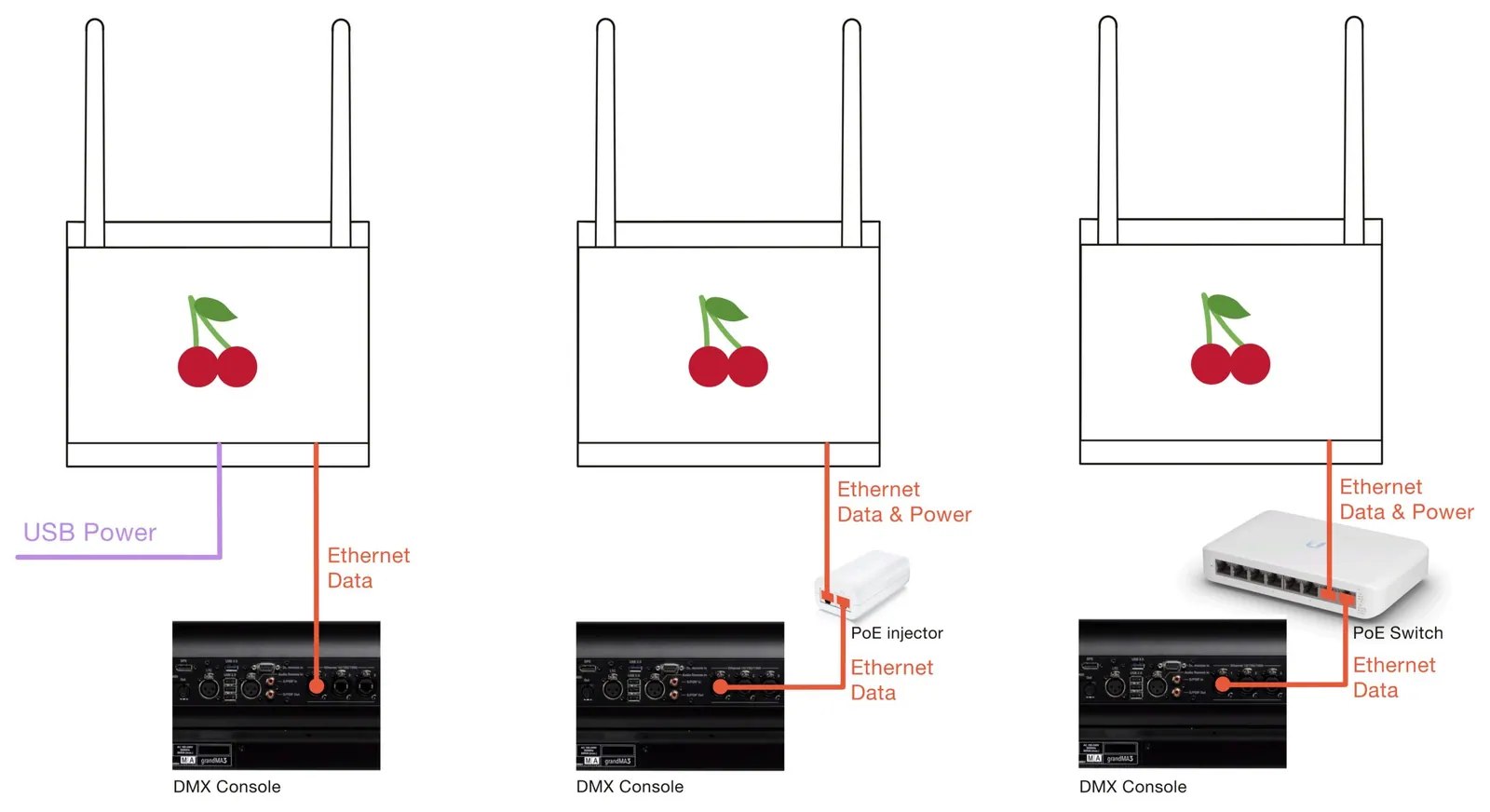
Cerise also works flawlessly with DMX consoles, just make sure you power it externally.
Using the wired DMX adapter
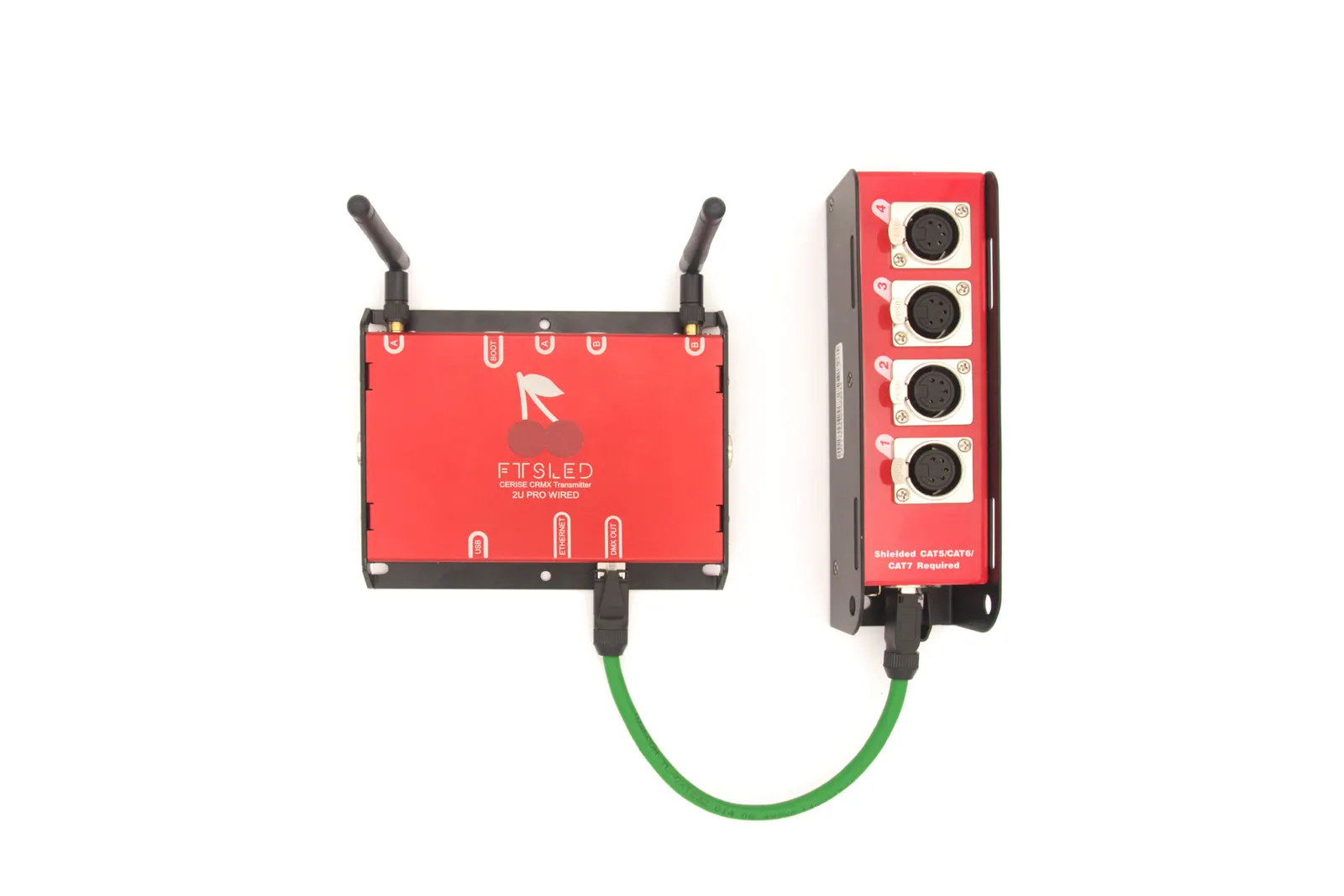
The Wired DMX breakout box is a passive adapter that takes the 4 universe DMX signal and splits it out to 4 individual XLR 5pin connectors. It only works if plugged in the “DMX Out” port.
It uses the same RJ45 connector as Ethernet to save on space but the conversion to DMX is done inside of Cerise itself.
There are two variants of the adapter, the SSNAKE and Stairville, the only difference is that stairville requires the small adapter provided to work properly.
RJ45 DMX Output pinout
| RJ45 Pin | ESTA pinout / XLR pinout | Thomann Cat Snake pinout / XLR pinout |
|---|---|---|
| 1 | U1 Data+ / pin 3 | U1 Data+/ 3/ A |
| 2 | U1 Data- / pin 2 | U1 Data-/ 2/ B |
| 3 | U2 Data+ | |
| 4 | U3 Data- | |
| 5 | U3 Data+ | |
| 6 | U2 Data- | |
| 7 | GND | U4 Data+ |
| 8 | GND | U4 Data- |
Product specifications and layout
Detailed product specification table
| Model | 1U | 2U Pro | 2U Pro Wired | 4U Pro | 4U Pro |
|---|---|---|---|---|---|
| CRMX universes | 1 | 2 | 2 | 4 | 4 |
| USB C connector | ✅ | ✅ | ✅ | ✅ | ✅ |
| Ethernet | ❌ | ✅ | ✅ | ✅ | ✅ |
| RF spectrum analyzer | ❌ | ✅ | ✅ | ✅ | ✅ |
| Power Over Ethernet | ❌ | ✅ | ✅ | ✅ | ✅ |
| Wired DMX universes out | ❌ | ❌ | 4 isolated input/output via second RJ45 connector | ❌ | 4 isolated input/output via second RJ45 connector |
| CRMX Linking Key | ✅ | ✅ | ✅ | ✅ | ✅ |
| USB Power Consumption | 5V 0.3A | 5V 0.4A | 5V 1A | 5V 1A | 5V 1.5A |
| Total DMX universes | 1 | 2 | 6 | 4 | 8 |
USB :
Max power draw : up to 5V 3A (0.5-1A typical)
USB revision compatibility : USB 1.1
Network speed via USB : 10mbps
Ethernet :
Link speed : 10/100
Auto MDI-X NOT compatible
Power over Ethernet compatibility
IEEE802.3af compliant
Input voltage range 36V to 57V
Mode A & B
UI :
1 Status LED / Boot button
1 universe color LED / linking button per universe
DMX :
Output frequency 41Hz
Merging type : LTP (Latest Takes Priority) more modes to be supported in 1.8.x and up
Network Protocols supported : simultaneous Art-Net & sACN
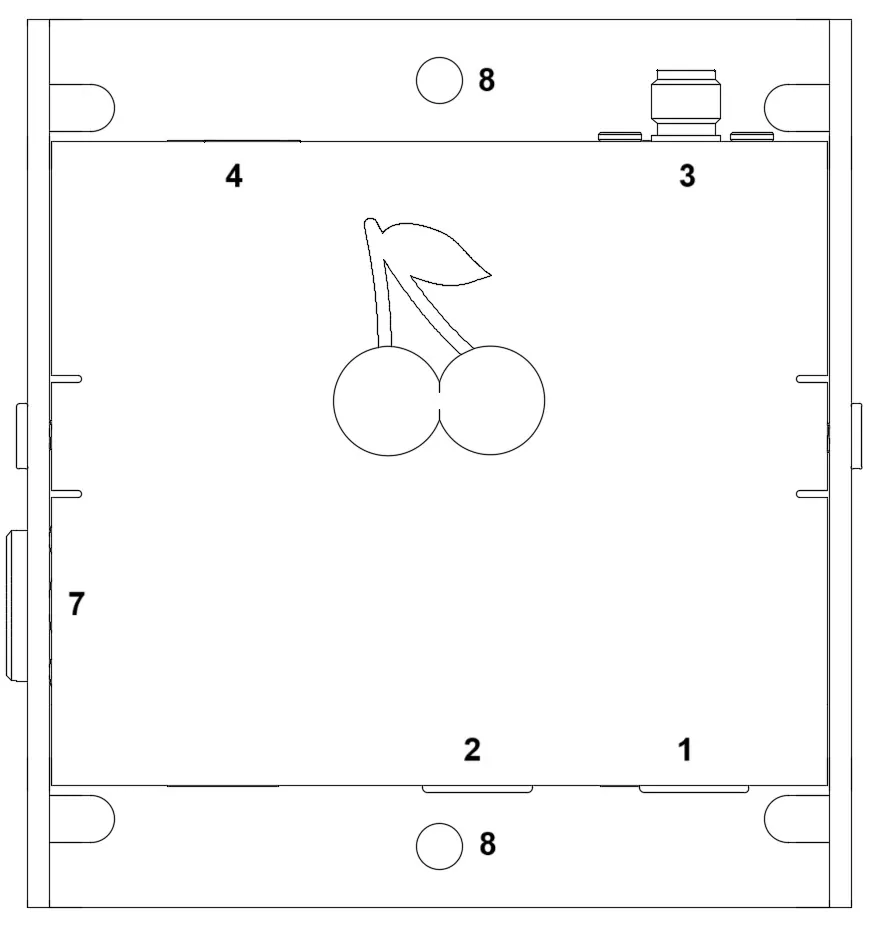
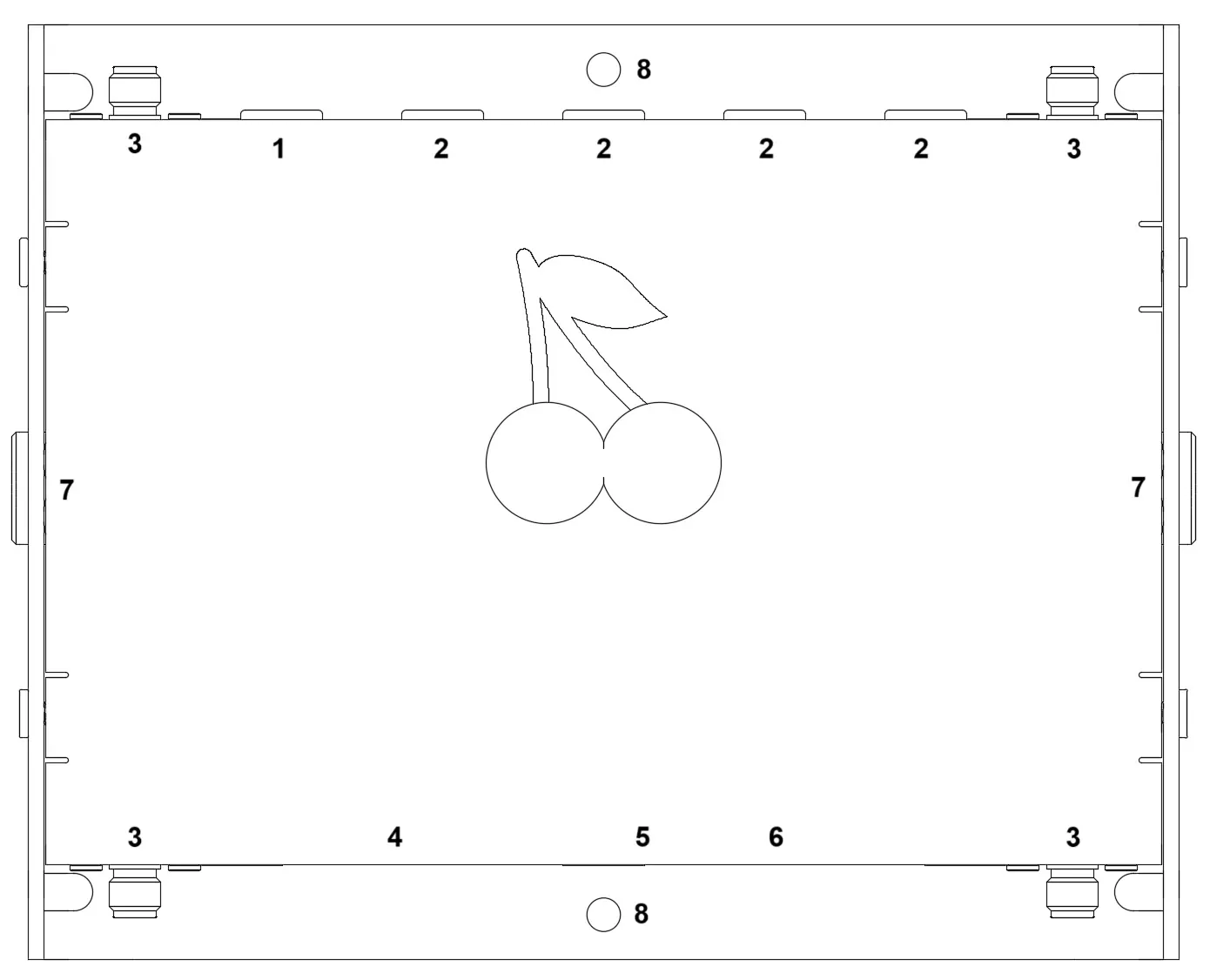
- BOOT button / status LED
- Green = Powered
- Cyan = USB link established
- CRMX linking buttons
- Blinking = waiting for signal
- Static = sending data
- RP-SMA antenna connectors
- USB type-C connector
- Ethernet 10/100 RJ45 PoE connector
- Wired DMX output
- 1/4” thread mounting point
- M4 mounting holes (4.2mm)
How to update the device
-
- Download and un-zip the latest firmware from here: Downloads
- Get a hold of your Cerise transmitter and hold pressed the 1. BOOT button
- While holding the button down, plug the transmitter in your computer with a USB type-C cable
- A new mass media storage device should appear called RPI-RP2, drag and drop your CeriseFirmwareXXX.uf2 file onto it
- Wait until the transfer is complete, then power cycle the unit
How to factory reset the device
From 1.6.4 and up you can easily reset the device by holding the 1. BOOT button for 10 seconds and upon it turning purple pressing it shortly once.
User Interface / Settings
Config
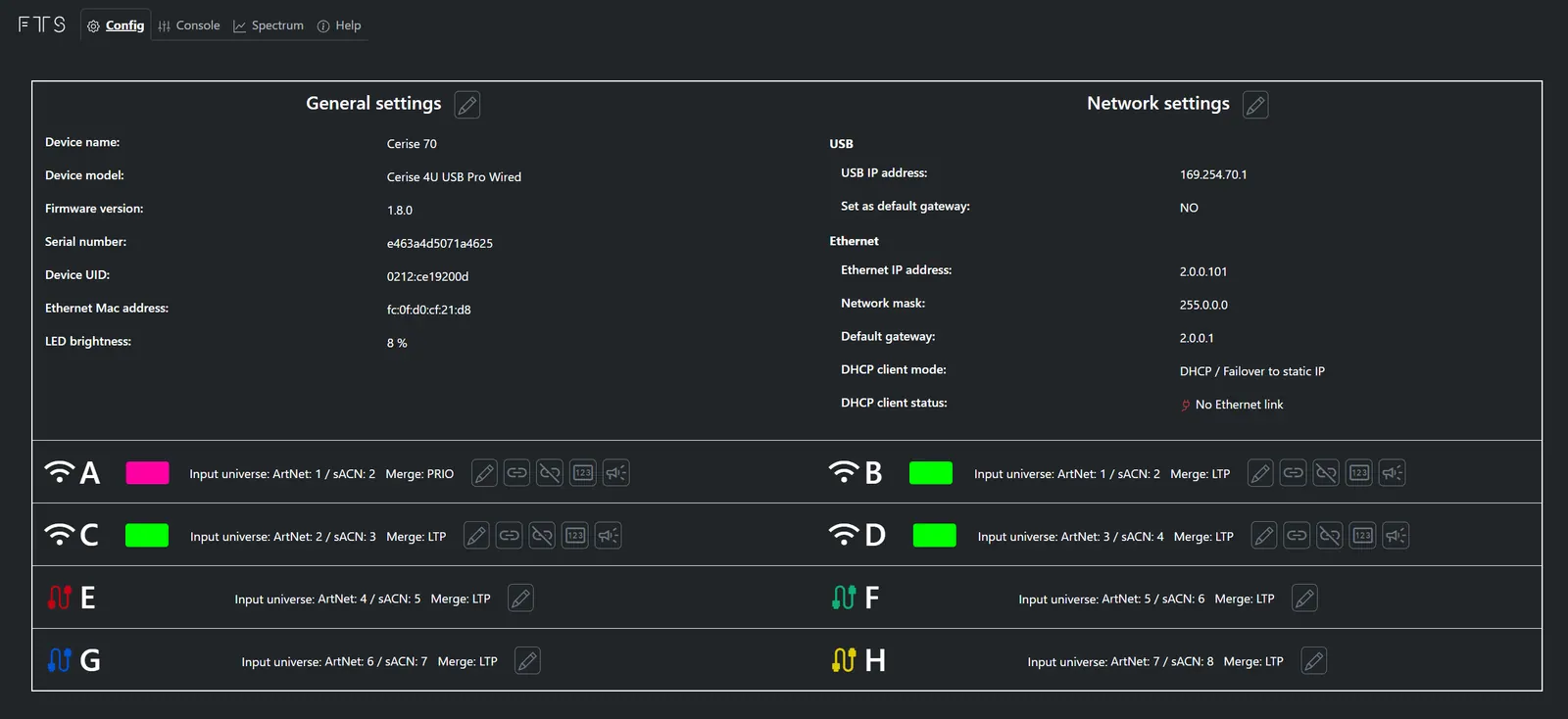
Cerise can be fully operated from it’s WebUI, to access it, just type in the corresponding IP in a web browser, the default IP are 169.254.XX.1 if connected via USB or 2.00.101 if connected via Ethernet (note that these IP addresses can be changed in the WebUI. Your device's USB IP can either be found by looking on the sticker on the back of the device or by going to your ipad General settings > Ethernet > Cerise (ie. Cerise 2UPW 169.254.46.1). We recommend leaving the settings by default if you are using Cerise with an iPad, all the default parameters are tested and work out of the box with most apps out there.
💡Tip : You can disable status LEDs by setting the LED brightness to 0%.
💡Info : Starting 1.8.x the default IP changes, it goes from 169.254.xx.1 to 10.206.xx.1, you might need to factory reset your device upon updating. (ie. 169.254.46.1 would become 10.206.46.1)
Changing USB IP address
To change the Cerise’s default USB IP address, just change the USB IP address field and power cycle the device.
💡Tip : You do not need to change any of the Ethernet related settings (Address, Network Mask, Default gateway …).
Changing Ethernet IP address
To change the Cerise’s default Ethernet IP address, just change the Ethernet IP address, as well as the corresponding Network mask and Default Gateway field and power cycle the device.
💡Note that your device's USB IP address will always have the last digit increased. If the transmitter’s USB IP is 169.254.46.1, your device (iPad, computer …) will have the 169.254.46.2 address. Certain browsers such as Safari have issues with 2.x.x.x IPs, we recommend using Google Chrome. If you’ve changed your IP from the factory one and can’t access the web page, make sure you’ve disabled your Wi-Fi settings as these might conflict. If you still can't access it, consider factory reseting your device.
USB default gateway (only for USB)
Setting the USB default gateway does exactly what it says, it configures a gateway for the USB interface, unfortunately, if your device is connected to the internet via a Wi-Fi or wired connection to your router, it will serve as a gateway too, causing conflicts. We recommend enabling this feature if you do not require internet while using the transmitter (i.e. you have a dedicated ipad for set) and wish to use Art-Net Broadcast or sACN protocols via USB.
💡On version 1.6.x and up the option “USB set default gateway” is disabled by default.
Functional network diagram
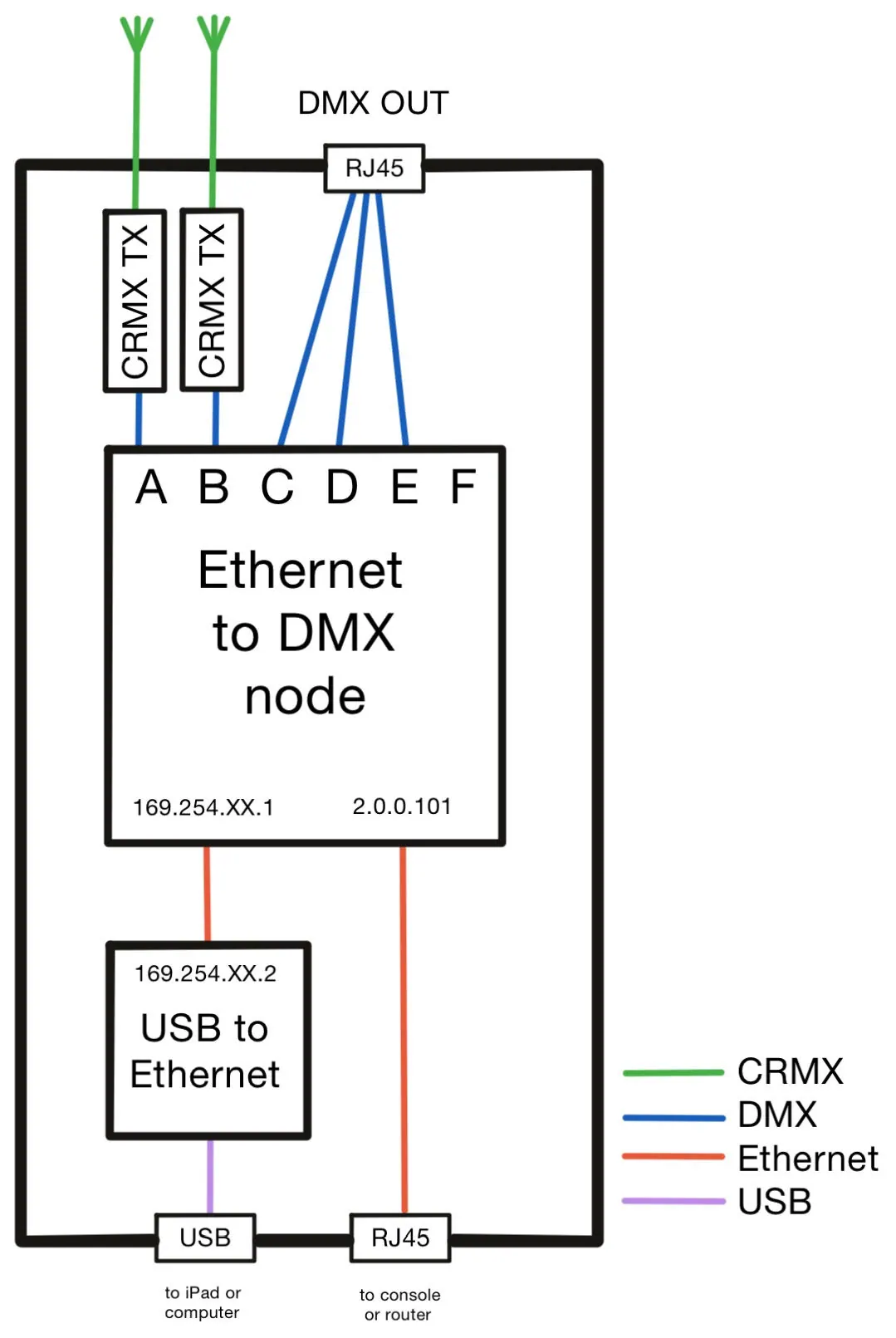
Cerise works like any other USB to Ethernet adapter and is supported on most platforms without the need to install any drivers.
It creates its own dedicated network between its virtual network card and DMX node, with a default IP that begins with 169.254.XX.X
The DMX nodes has 1 (1U USB) to 8 (4U PRO WIRED) outputs depending on the product version.
If you are using Cerise with an Ethernet adapter, the webUI’s IP address is different from USB, by default it is 2.0.0.101
Console
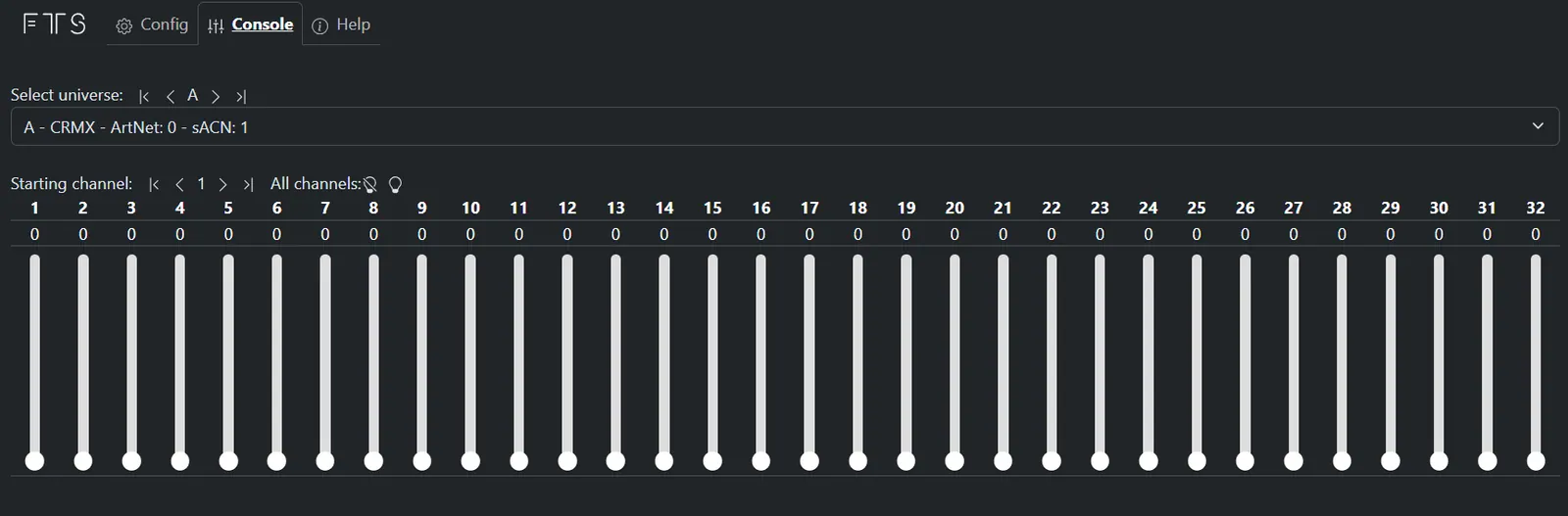
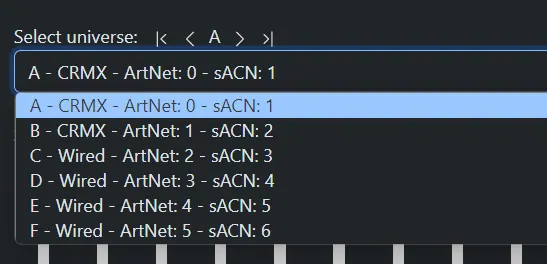
Select universe allows you to select outputs from A to F, the drop down allows you to easily know which universe you are viewing and whether it is a wired or wireless universe.
The console can be used as a basic fader board, if there is network data coming in via Art-Net or sACN it will be displayed and the faders will be rendered inoperable.
How to set it up
💡If your device still has its 169.254.xx.1 IP address and you wish to use it with iOS, we strongly advice you change your default IP address as we've discovered the 169.254.xx.1 IP range can cause conflicts in iOS. We recommend you switch to 10.206.xx.1 where you keep the xx unique number the same. Doing this fixes issues with Link Status staying offline in Blackout Lighting Console and having to turn the Wi-Fi off to use Cerise. (ie. 169.254.46.1 would become 10.206.46.1)
Blackout Lighting Console
- Plug-in your Cerise transmitter and disable Wi-Fi (this step is needed if you don't have the latest 2.3.6 update with the new Link Status tab)
- Get your device IP address, for more details, refer to How to get my IP on iOS or read the sticker on the back of your Cerise
Go into Settings > Ethernet > Click on the device and copy the transmitter IP that looks like 169.254.XX.1 (if you only see an IP that ends in XX.2, just copy it and remember to change the 2 for a 1).
Remember to keep the settings on "Automatic" and do not try to set a static IP addres, it is not needed.
- Go to your web browser, we recommend Chrome for better compatibility
- Type-in your transmitter IP and press enter
- Change your USB IP to the following 10.206.XX.1Press save and reboot Cerise, then exit the WebUI.
- Open Blackout Lighting Console
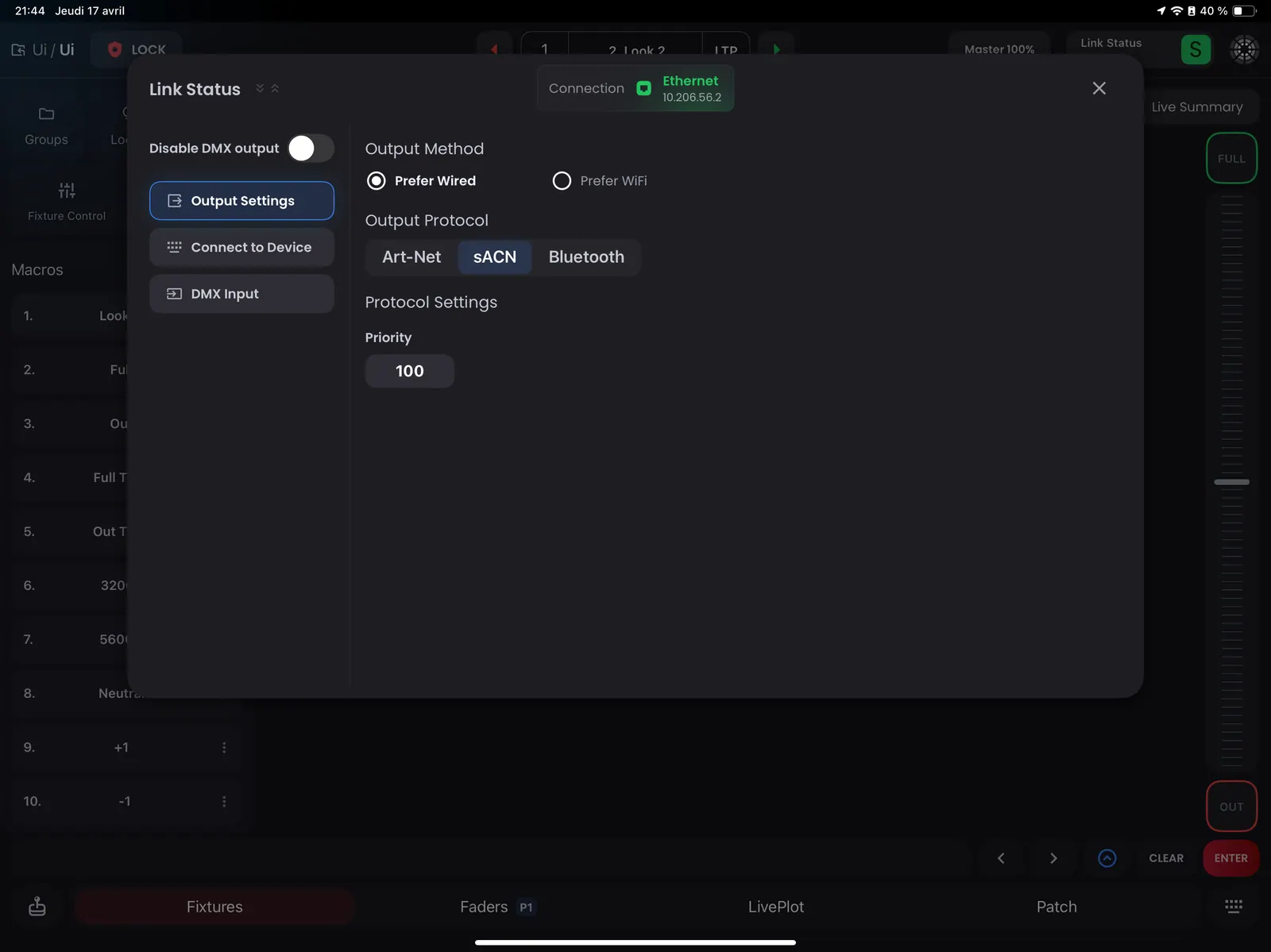
- Now navigate to your project, and in Link Status (top right)
- Then select your favorite protocol, if you don't know what to pick, you can go with sACN. If you want slightly better stability you can switch to Art-Net Unicast and type in your new Cerise IP address from step 5.
Luminair app
- Plug-in your Cerise transmitter and disable Wi-Fi (this step is needed as Luminair will have issues otherwise)
- Get your device IP address, for more details, refer to How to get my IP on iOS or read the sticker on the back of your Cerise
Go into Settings > Ethernet > Click on the device and copy the transmitter IP that looks like 169.254.XX.1 (if you only see an IP that ends in XX.2, just copy it and remember to change the 2 for a 1).
Remember to keep the settings on "Automatic" and do not try to set a static IP addres, it is not needed.
- Go to your web browser, we recommend Chrome for better compatibility
- Type-in your transmitter IP and press enter
- Change your USB IP to the following 10.206.XX.1Press save and reboot Cerise, then exit the WebUI.
- Open Luminair
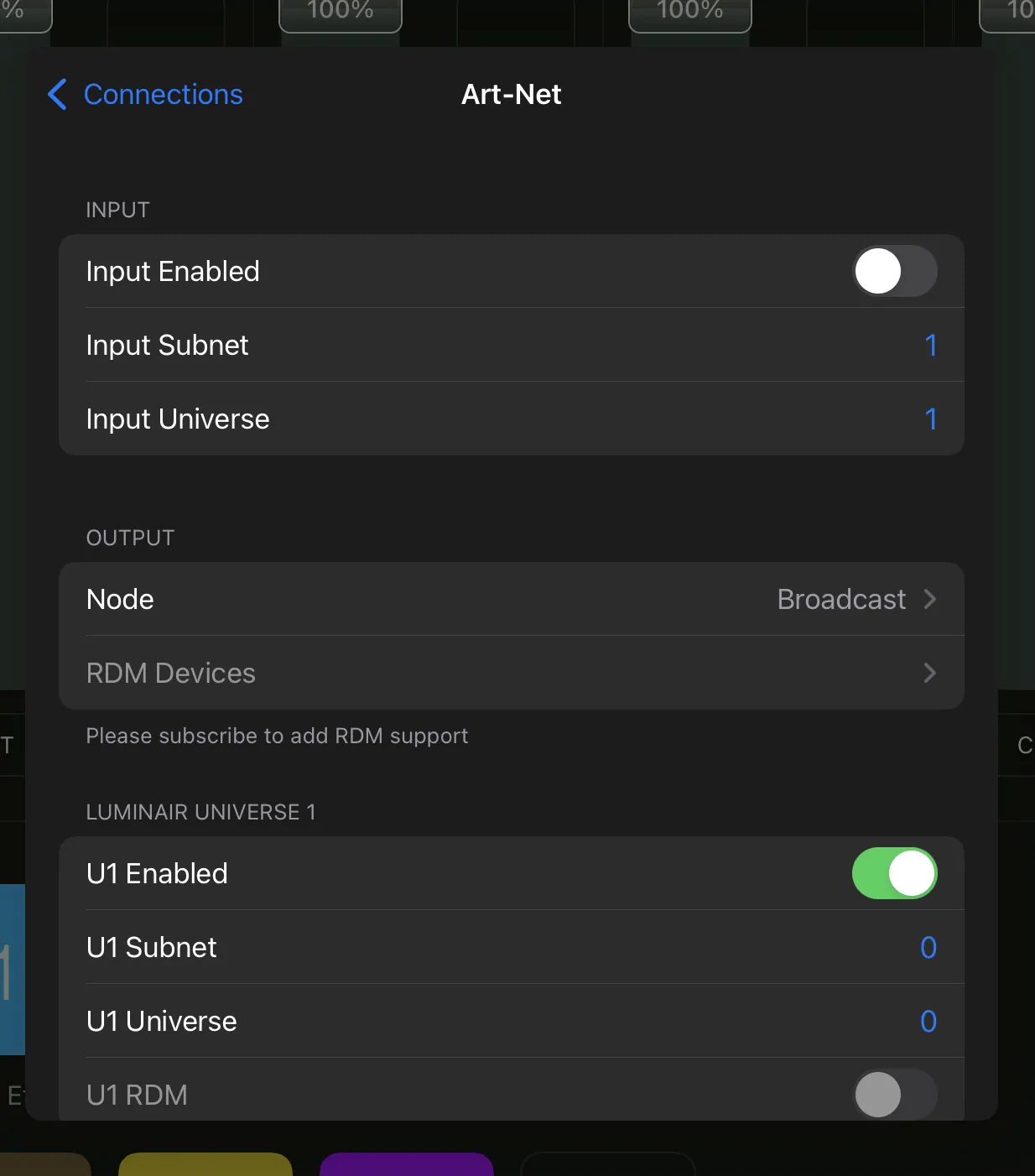
- Now navigate to Connections > Art-Net
- Make sure U1 Enabled is ticked and Universe and Subnet are both 0
- Make sure Broadcast is also enabled. If you want slightly better stability you can switch to Art-Net Unicast by disabling Broadcast and typing in your new Cerise IP address from step 5.
Troubleshooting steps
Nothing pops up when I plug in Cerise
- Make sure to check which color is the boot LED. Green means there is power but no USB data/connection (this is normal when using via PoE power). Cyan means there is both power and USB data.
- Troubleshooting no USB data is usually a bad cable but not always. Try a different know good USB cable and try without the provided USB splitter. Sometimes certain cables might work one way but not the other, as USB-C connector can be plugged-in both ways, so it’s worth trying both ways.
- If the cable works but you don’t get data you might want to check if the USB port of your iPad/computer works. Sometime these can be disabled in settings or if the ipad isn’t unlocked (see below for more info).
- If the issue persists you may want to try updating Cerise to the latest firmware as this will overwrite potentially corrupted parts of the memory.
- If none of this fixes your issue, please submit a support request.
Blackout won’t output anything. Cerise is properly detected, displays as a network interface, I can access the WebUI but I can’t get data out of Blackout
Original article : https://help.center.blackout-app.com/servicedesk/customer/portal/3/article/20283396
Follow these steps in order for a swift resolution:
- Check Link Status:
- In Blackout, navigate to the 'Link Status' dropdown. A RED indicator means Blackout is not connected to your hardware.
- Update Your Software:
- Ensure your device runs on iOS 17.x or newer.
- Verify that you are using the latest release version of Blackout.
- Account Verification:
- Confirm you're logged into a valid account with an active subscription. You can check this by tapping the Blackout logo in the top right corner.
- Network Connectivity:
- Ensure a stable and active wired or Wi-Fi connection to your lighting network.
- IP Configuration:
- Verify that the IP address of your iPad aligns with the range of your network, gateway, or node. For assistance, refer to my video: Troubleshooting Blackout in 5 min or less!
- Protocol Alignment:
- Confirm that you're using the correct output protocol. For instance, if your gateway is configured for sACN but you are sending Art-Net, this mismatch will cause issues.
- Art-Net Specifics:
- Art-Net Offset: Art-Net numbering starts from 0. Ensure that the offset in Blackout matches your Art-Net node's settings. For example:
| Art-Net Numbering | Actual Universe |
|---|---|
| 0 | 1 |
| 1 | 2 |
If your Art-Net node is set to Universe 1, the offset in Blackout should also be set to 1.
Limited Broadcast Art-Net Nodes:
-
- Some Art-Net nodes are configured to only receive Limited Broadcast Art-Net (Art-Net broadcast to the IP 255.255.255.255).
While using Limited Broadcast is operational in a closed network, it's important to note that it diverges from the standard Art-Net specifications and might not be ideal in all scenarios.
For more information: Casting
iOS Access Settings:
-
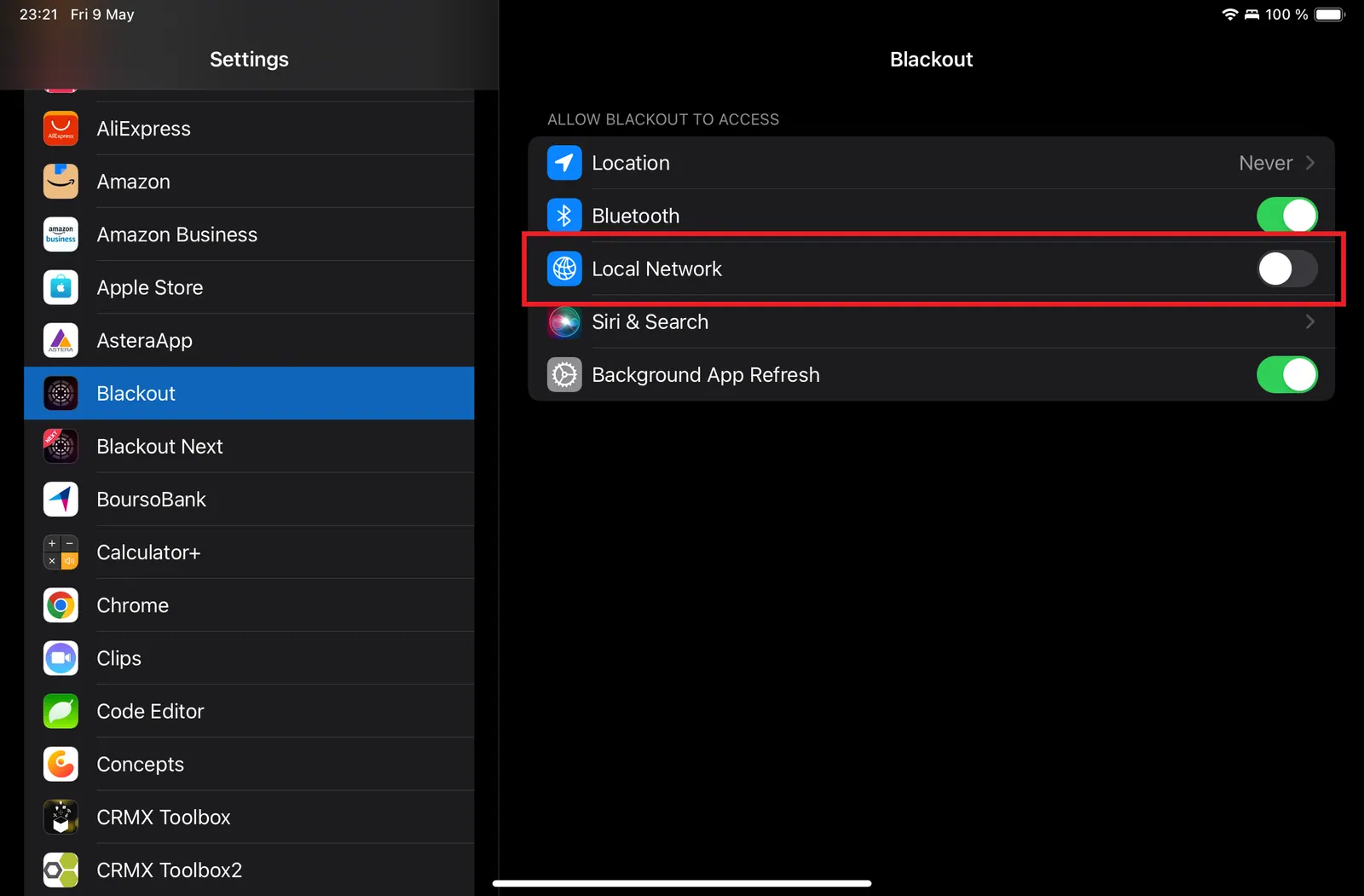
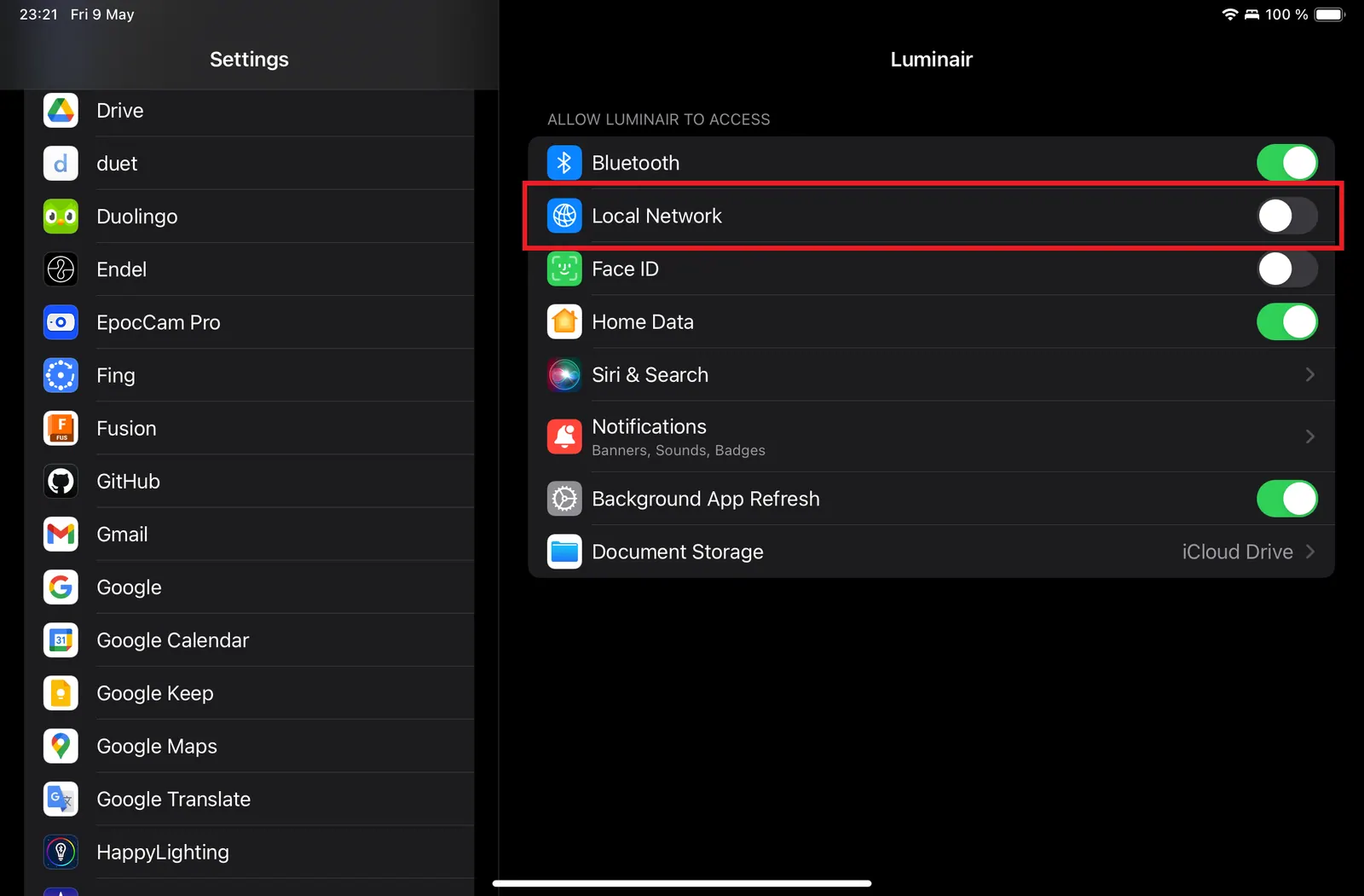
- When you install Blackout a quick popup appears asking permission for Blackout to utilize connecting to devices on your local network. If you do not click “OK” on this popup Blackout cannot output anything. You can go to iOS Settings->Blackout (scroll down in the left sidebar) and turn ON “Local Network.” Video for reference: Troubleshooting Blackout in 5 min or less!
WebUI won’t load in my web browser but I have a Cyan LED/USB/Ethernet link
Certain web browser don’t work well with certain web pages, we’ve found Safari and Brave aren’t the most compatible. It seems Google Chrome works best in our testing.
Cerise stops working or becomes unreliable when my iPad battery reaches 100%
This is most likely due to the hub/splitter being used that doesn’t support USB PD FRS (Fast Role Swap) which means when the iPad is fully charge and stops sinking power and turns into a power source the splitter doesn’t properly switch mode and needs to be restarted. A simple plug/unplug should fix the issue. We recommend not using the splitter when your iPad is fully charged.
I lose data communication after my ipad goes to sleep or I don’t get anything when I plug in Cerise when my ipad is locked.
Apple has a setting you may want to try to enable. 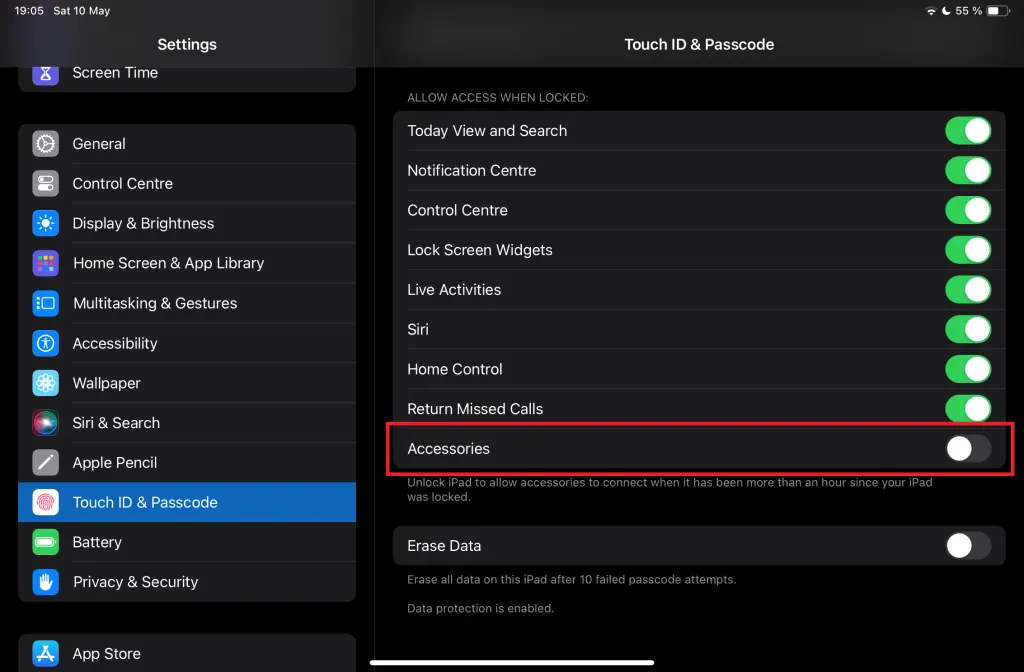
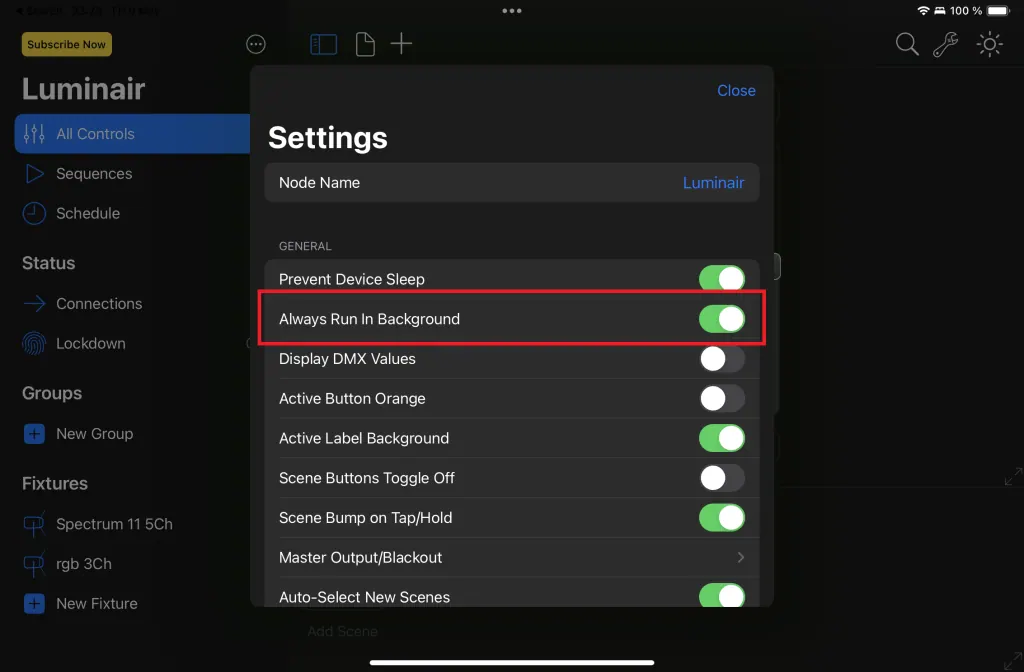
Otherwise you can make sure background activity is enabled in your app.
Frequently Asked Questions
Does Cerise work on my iPad with a lightning connector ?
In theory yes, but certain older iPads tend to run into issues that are difficult to diagnose and not recommended for set use.
If you wish to try at your own risk, you will need to use an Apple Lightning camera adapter : https://www.apple.com/shop/product/MK0W2AM/A/lightning-to-usb-3-camera-adapter
On what device will Cerise work ?
So far we’ve tested and validated :
- Windows 10 & 11
- Apple’s Mac with an Intel processor
- Linux
- iPad with type-C connector (iPad Mini, Pro and 10th gen) and lightning connector
It doesn’t work on :
- Samsung Smartphone
I can’t seem to detect Cerise on my iPad
The first step to check is that the BOOT/Update LED is Cyan, if it’s green, this means you don’t have a USB connection between Cerise and the iPad.
This could be due to various reasons :
- Faulty USB cable (make sure to use a cable that can at least do both USB 2.0 communication as well as power)
- Certain docks/dongles will have a USB type-C input connector for a charger, in certain cases they do no support data, the best way around is to thy with one of the USB A ports with a type-A to type-C cable
- Certain docks/dongles will also have a built-in ethernet card which might conflict with Cerise
I’ve changed my IP address but I can’t connect anymore
First, make sure you are using a compatible browser, we recommend Google Chrome as we’ve ween odd behaviors with both Safari and Firefox.
If you still can’t connect, try on a computer. If this doesn’t work, proceed to a factory reset.
Can I use CRMX Toolbox with Cerise ?
Yes, just note that Bluetooth is disabled by default so you’ll need to enable it.
To do so, press the link button in the following sequence : 1 short press and immediately 1 long press (3 seconds).
You should now see a Bluetooth device showing up in CRMX Toolbox.
If this doesn’t appear, perform the action a second time.
Once you’ve changed your settings, make sure to disable Bluetooth as this might result in random light flashes to linked fixtures.
This can be done bien repeating the same button sequence as to enable it.
I don’t have CRMX linking key on my Cerise
The linking key can be accessed via the WebUI right next to the link and unlink buttons.
If the button doesn’t show up, you might need to update the CRMX TimoTwo module(s) inside Cerise.
To do this you will need to enable Bluetooth and connect with CRMX Toolbox, in the device section of the app, you should have the option to update.
💡Note that you might have to do multiple updates as there is one TimoTwo per universe.
FCC Caution
This device complies with part 15 of the FCC Rules. Operation is subject to the following two conditions: (1) This device may not cause harmful interference, and (2) this device must accept any interference received, including interference that may cause undesired operation.
Any Changes or modifications not expressly approved by the party responsible for compliance could void the user's authority to operate the equipment.
Note: This equipment has been tested and found to comply with the limits for a Class B digital device, pursuant to part 15 of the FCC Rules. These limits are designed to provide reasonable protection against harmful interference in a residential installation. This equipment generates uses and can radiate radio frequency energy and, if not installed and used in accordance with the instructions, may cause harmful interference to radio communications. However, there is no guarantee that interference will not occur in a particular installation. If this equipment does cause harmful interference to radio or television reception, which can be determined by turning the equipment off and on, the user is encouraged to try to correct the interference by one or more of the following measures: -Reorient or relocate the receiving antenna. -Increase the separation between the equipment and receiver. -Connect the equipment into an outlet on a circuit different from that to which the receiver is connected. -Consult the dealer or an experienced radio/TV technician for help.
This equipment complies with FCC radiation exposure limits set forth for an uncontrolled environment. This equipment should be installed and operated with minimum distance 20cm between the radiator & your body.