
FTSLED / Blog
Cerise not working? Start with the LEDs
Most Cerise problems come down to a handful of causes: an old firmware, a Linking Key mix-up, an IP setting, a cable or a power source. Work through this guide from the top: the LEDs usually tell you where to look. For setup steps, see the user guide.
Before anything else, make sure Cerise runs the latest firmware. Firmware 1.8.11 fixes every USB connection issue we know of, including iPadOS 26 not detecting Cerise.
1. Read the LEDs
Cerise has a BOOT LED and one LED per universe, A to D depending on the model.
BOOT LED
Cyan: powered and connected over USB.
Green: powered, but no USB connection.
- Cyan (green and blue): Cerise is powered and its USB connection to your iPad or computer is up.
- Green: Cerise is powered, but there's no USB connection. That's normal when Cerise runs on PoE with nothing plugged into its USB port. Over USB, it usually means a bad cable, and more rarely a damaged USB port on Cerise.
Universe LEDs
Each universe LED shows its universe colour, red by default. You can give each output its own colour in the WebUI's Config tab. The blink pattern then tells you what that radio is doing. The first four are the standard CRMX status patterns, so you'll recognise them on most other CRMX transmitters too; the last one is specific to Cerise.
Slow heartbeat: one short blink (about 0.1 s) every second. Idle: no DMX is reaching the radio, so nothing is sent.
Steady: DMX is coming in and going out over CRMX.
Fast blink (0.1 s on, 0.1 s off): linking, after a short press on the universe button.
Slow blink (0.2 s on, 0.2 s off): unlinking, after holding the universe button for more than 3 seconds.
A quick flicker, a one-second pause, then again (Cerise only): DMX was coming in and has stopped.
Quick test: open the WebUI's Console tab and raise any fader. The universe's LED should stop blinking and stay on. If it stays on the slow heartbeat, DMX isn't reaching the radio: contact our support.
At power-on
When you plug Cerise in, every LED lights green for a split second, then switches to its normal colour.
Every LED green for under a second, then the normal colours.
If the LEDs don't go through this sequence when you plug Cerise in, for example if some stay off, something may be wrong with the unit: contact our support.
2. Linking
Linking and unlinking receivers
Press a universe button briefly to link the receivers that are waiting to be linked. Hold it for more than 3 seconds to unlink every receiver from that universe. A Linking Key skips the button entirely: set the same 8-digit key on Cerise and on the fixture, and they find each other.
The fixture shows the wrong universe
You press D, and the fixture says it's linked to C, or A, or B. On a 2U, A and B seem swapped. This is the most common Linking Key problem: the same key is set on two outputs, so both radios answer the same receivers. Give each output its own key.
Updating Cerise won't fix this on its own. We made updates keep your existing Linking Keys and links on purpose, so an update in the middle of a shoot doesn't break a rig you've already linked. If two outputs share a key, change it by hand after updating.
Nothing links, or only some fixtures do
If it isn't a range issue, check the Linking Key:
- Four or more zeros in a row, such as 00000000 or 00001111. Up-to-date receivers, a LumenRadio Moonlite for example, may cope, but older receivers that haven't been updated may not link at all. Avoid them.
- An easy-to-guess key such as 12345678 or 11111111. Anyone who knows the key can take over your fixtures: use a random one.
- The wrong output letter on the fixture. Only the LumenRadio Stardust uses outputs B to H. With Cerise and every other transmitter, receivers must be on output A.
Since firmware 1.8.11, the WebUI checks this for you: it refuses keys with four zeros in a row or a key already used on another output, and warns you when a key is too easy to guess.
The wrong universe name or letter shows up
If no two outputs share a key, the radios may be running old TimoTwo firmware, which makes renaming unreliable. Update them with CRMX Toolbox, as explained in the user guide FAQ. An update won't hurt either way.
Random flashes
- Check that no two outputs share a Linking Key.
- Make sure Bluetooth is off on the radios after using CRMX Toolbox.
- Check that two sources aren't sending the same universe to Cerise at once, and that no two fixtures' DMX addresses overlap with their profiles.
- If only one fixture flashes, the cause is often that fixture. Some firmware versions of Aputure, Astera, Nanlux and other fixtures don't handle CRMX well. Turn the transmitter off for a moment: if the fixture still glitches, look at the fixture. Update its firmware, and its CRMX module through CRMX Toolbox if it allows it.
3. Patching
Art-Net counts universes from 0 and sACN from 1, so universe 1 in one app can be universe 0 in another. A fixture profile that doesn't quite match the fixture's mode causes the same kind of confusion.
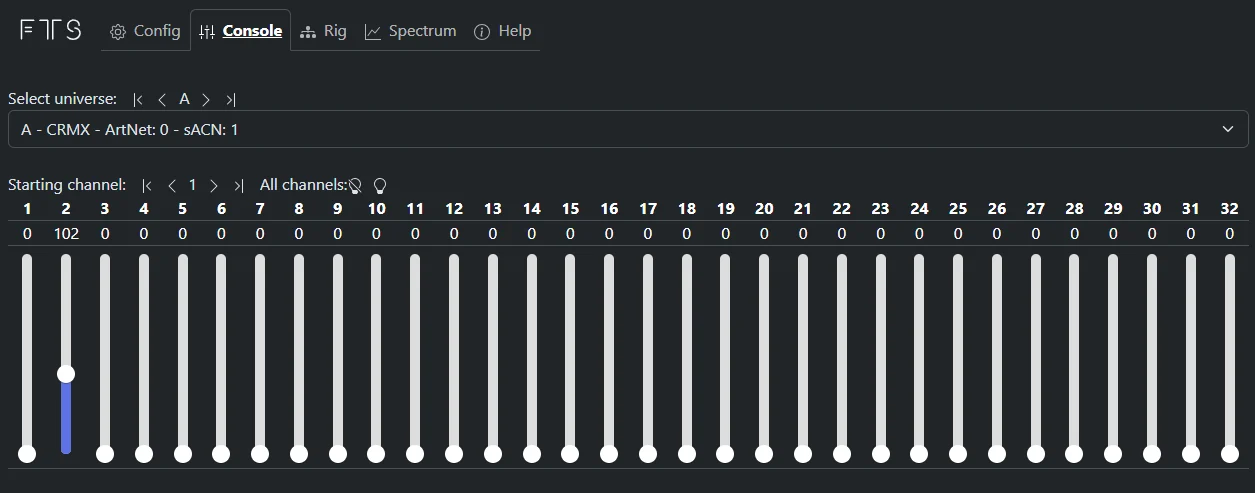
The WebUI's Console tab helps here. With nothing coming in, its faders send test DMX. When an app or console is sending, they show what Cerise receives on that universe, so you can check the data before blaming the fixture.
4. Network and IP addresses
The default USB address is 172.30.0.1
Since firmware 1.8.11, Cerise uses 172.30.0.1 on USB. iOS deprioritises the older 169.254.x.x addresses, which caused hiccups in Blackout, so the old workaround of changing the address by hand is no longer needed. If Cerise doesn't answer at 172.30.0.1 after updating, do a factory reset to restore the default address.
Leave the iPad's IP settings on Automatic
On the iPad, open Settings › Ethernet. Cerise appears there with its model and address, for example "Cerise 1U 172.30.0.1". Tap it and check that IP configuration is set to Automatic.
Cerise is its own DHCP server: it gives your iPad an address ending in .2, next to its own .1. If you set the iPad to Manual, or type in Cerise's address, the two clash and nothing works.
The WebUI won't open in the browser
- Type the right address. Cerise's address ends in .1; the address ending in .2 is your iPad's. Don't change either to make them match.
- Use http, not https. Type
http://172.30.0.1. Depending on how you paste the address on iOS, it can come out withhttps://in front, and an https address fails, often with a cryptic error, because Cerise works offline and has no certificate. - Try another browser. Safari, Chrome, Firefox, Edge, Brave and Opera should all work. On a computer, browsers that support WebUSB show a pop-up that opens the WebUI in one click.
"USB › Set as default gateway"
Leave it on NO, the default since firmware 1.6. It can solve some rare network issues, but only change it if our support asks you to. Set to YES, it also cuts the iPad's internet access, even over Wi-Fi. With it on NO, the Router field in the iPad's Ethernet settings stays empty: that's expected.
5. Power and cables
Cerise becomes unstable when the iPad reaches 100%
When the iPad is full, it starts powering accessories itself, then draws power from the charger again as soon as it drops a little. That back-and-forth can upset accessories, especially with hubs that don't support Fast Role Swap. Unplug the charger and plug it back in once the battery falls below about 50%.
Weak chargers and batteries
Older USB-A chargers and some V-mount battery plates only provide 1 to 2.4 A at 5 V, which isn't enough for an iPad and Cerise together. Some accessories with built-in battery plates, iPad cases among them, don't provide enough power either, or heat up and deliver less over time. Use a USB-C Power Delivery charger or power bank of at least 20 to 30 W from a reputable brand. Some chargers quote 30 W in total across several USB-A ports, but only 5 V 2.4 A on each.
A low iPad battery
Below 20%, the iPad's power saving mode makes wired accessories unreliable, and older iPads also slow down, so DMX from your app can turn choppy. Charge the iPad.
A USB-C cable that only works one way round
USB-C is reversible, but many USB 3 extension cables (male to female) only connect the data pins for one orientation. The cable then works one way round and not the other: flip the plug and try again. Chaining several cables or extensions, USB 3 or USB 2, makes this more likely, so keep the connection to one cable where you can.
Antennas and 5 V only
Warning
Always keep the antennas connected. Never power Cerise without its antennas, and never remove them while it's running: transmitting without an antenna can damage the radios. Some third-party antennas can also damage Cerise. Be wary of specs that look too good to be true, such as a 24 dBi gain on a small antenna, and check them before use.
Warning
Only ever give Cerise 5 V. Some D-tap to USB-C cables output 15 V on USB-C, which destroys Cerise. Some passive USB-C splitters also send the same voltage to both ports: if Cerise shares one with a device that negotiates 15 V over USB Power Delivery, such as a charging iPad or laptop, Cerise gets 15 V too. To charge your iPad while you use Cerise, use the adapter supplied with it.
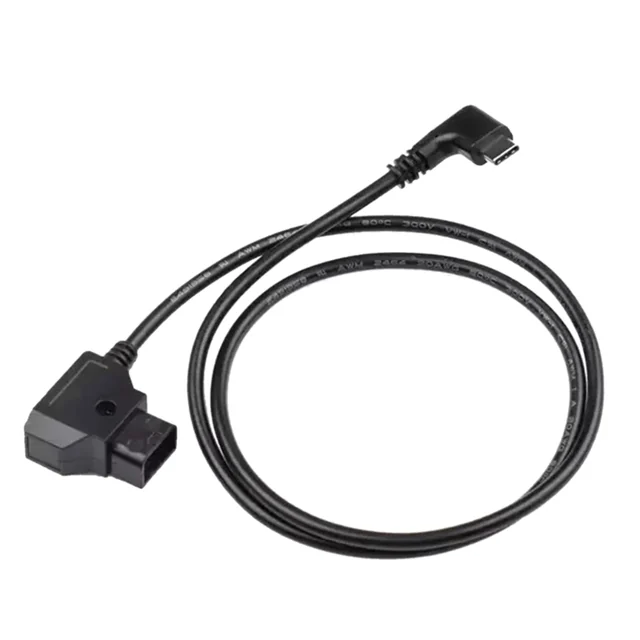
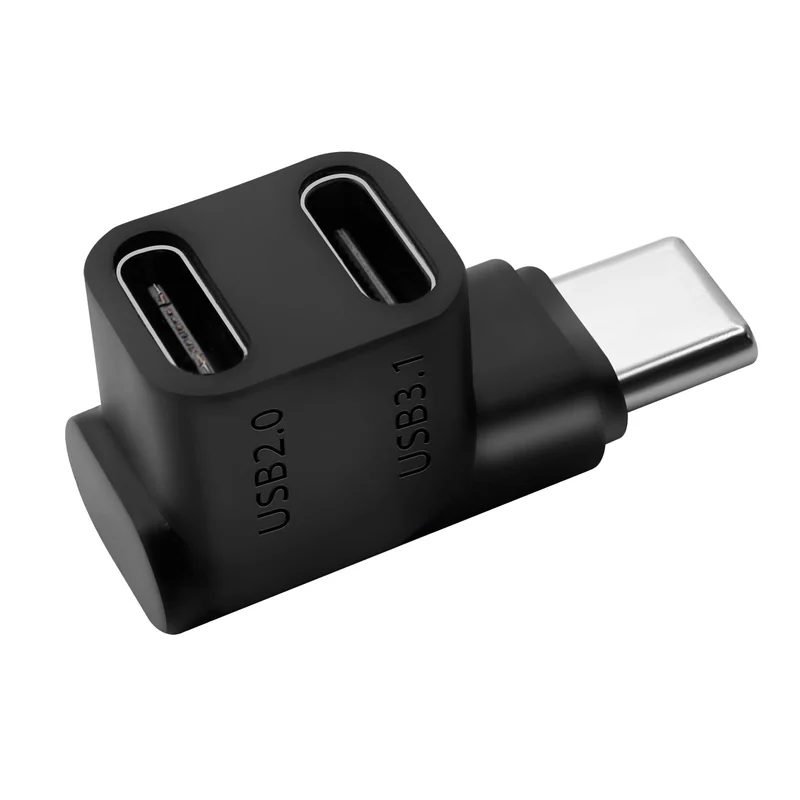
Using antennas or cables other than those supplied can damage your Cerise and void its warranty. If you're unsure, contact our support.
6. Radios
The radio isn't detected after pressing a button at start-up
Pressing a universe button while Cerise starts puts its radio into bootloader mode. Unplug Cerise and plug it back in.
The WebUI flashes and then shows nothing
Look at the device name in the iPad's Settings › Ethernet. If it reads "Cerise 172.30.0.1" without the model, such as "Cerise 1U", one of the radios isn't detected. Power cycle Cerise, then do a factory reset. If it persists, contact our support.
One output has weak range
- Check that the antenna is screwed in firmly.
- Clean the RP-SMA connector with contact cleaner or isopropyl alcohol.
- Swap antennas between outputs to see whether the problem follows the antenna.
- Look for interference: Cerise's spectrum analyzer shows what else is using 2.4 GHz and lets you block busy channels.
Some early units had a faulty RP-SMA connector: if the problem stays on the same output, contact our support.
7. iPad and app settings
iPadOS 26: allow wired accessories
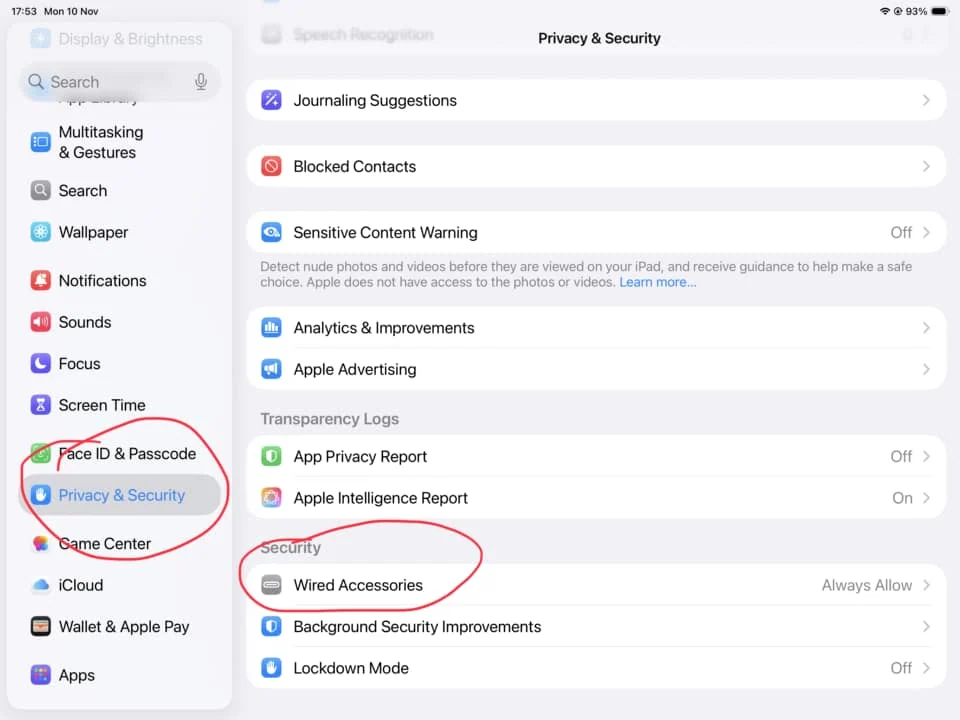
iPadOS 26 changed how wired accessories are allowed, so Cerise doesn't always connect out of the box. Go to Settings › Privacy & Security › Wired Accessories and choose Always Allow instead of "Automatically Allow When Unlocked".
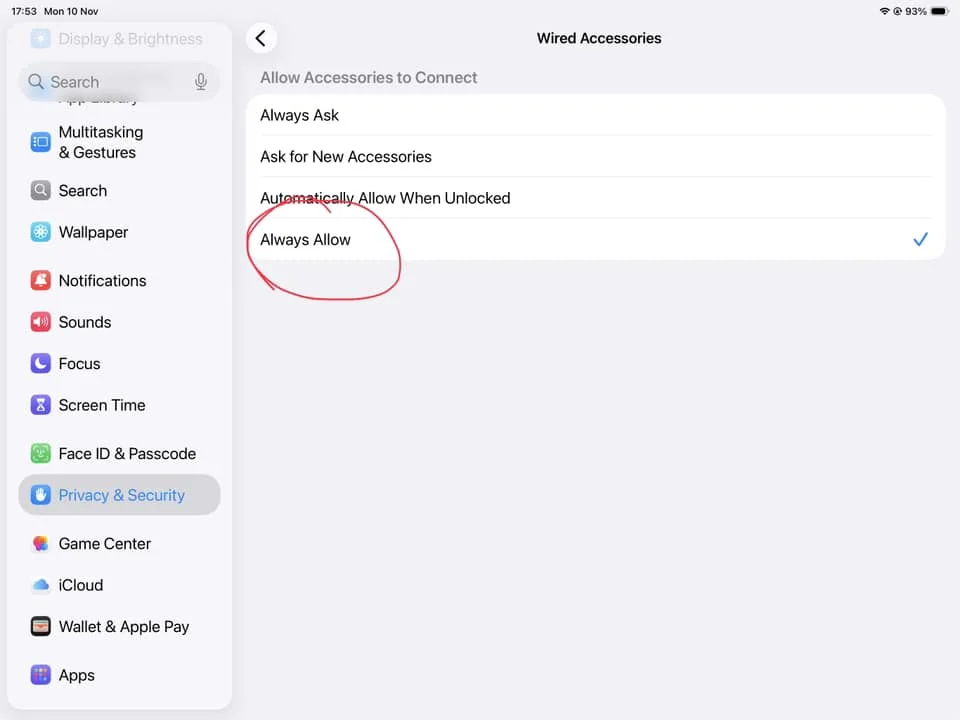
iPadOS 26: Cerise shows up but its IP fields are empty
If Settings › Ethernet › Cerise is on Automatic but the IP address and subnet mask stay empty, update Cerise to firmware 1.8.11 using the computer-based procedure. iPadOS 26 changed how it handles the USB network protocol Cerise uses.
Before iPadOS 26: allow accessories when locked
On earlier versions, turn on Accessories under "Allow Access When Locked" in Settings › Face ID & Passcode, so Cerise keeps working when the iPad locks.
Blackout doesn't output anything
- Check that you've bought a Blackout licence, on the same Apple account as the iPad.
- Check that you're not using more universes than your licence allows.
- Allow Local Network access for Blackout in the iPad's Settings › Apps › Blackout.
For the setup steps, see Blackout in the user guide. Blackout's own troubleshooting guide covers the app side in more detail.
Still stuck?
The FAQ in the user guide answers the most common questions. If yours isn't there, contact our support with your Cerise model, its firmware version, your iPad and iPadOS version, and the app you're using. A photo of the LEDs helps too.